What is drop box? Well this video will clear this..
What else you can do with drop box?
1. Making a project with in many people working together? then dropbox is very useful for you. Install dropbox in all the project partner laptops using same id and keep sharing the latest updates about your project. You will have all the files sync on internet also.
2. No need to carry usb to anyplace..just keep the important files in your dropbox and you can access it anywhere using internet.
3. It saves version of files you have deleted or updated recently.Say if you written a code and you feel like reverting it back to the previous version, you cannot do it normally but using dropbox you can download the old file you sync with the dropbox.
Installation process:
1. Download and install it from here
2. You need to make a account.
3. Give name to the PC's you are using, its used for reverting back to previous versions of file.
4. You need to install on all the pc's you are using, from same account you created once.
5. Make the dropbox folder on your pc at desired location when prompted by installation.
Bingo!, there you have a automated sync,sharing and backup thing which works. You just need to put the files for sync in the folder made above.
Give it a try, and surely you'll find a new way its useful to you.
Wednesday, September 29, 2010

Image Search by TINEYE
Finally, after long wait is the Reverse Image Search. Yup, you are reading it right. Searching a image on internet and its pretty good till now.
They do comparison on based on image database they have. As, on 19th August, 2010 they have indexed 1.7 billion images for comparions.
The TINEYE comes as a extesnions for almost all browser and its simple to use. You need a find a image just install the extension (required once) and then right click the image you need to search and click search image on tin-eye, and bingo! you will have a new tab with links of pages where the same image is there on web. Wasn't that easy.
Right now TINEYE is capable of searching image of format JPEG,GIF and PNG formats.

A powerful image search by same company is PixID which is not available for free, still for normal users TINEYE is a blessing.
They do comparison on based on image database they have.
The TINEYE comes as a extesnions for almost all browser and its simple to use. You need a find a image just install the extension (required once) and then right click the image you need to search and click search image on tin-eye, and bingo! you will have a new tab with links of pages where the same image is there on web. Wasn't that easy.
Right now TINEYE is capable of searching image of format JPEG,GIF and PNG formats.

A powerful image search by same company is PixID which is not available for free, still for normal users TINEYE is a blessing.
Monday, September 27, 2010
Height of Validations
Recently while writing a mail, I accidently encountered a cool validation by gmail.
Lets have a demo. I'm writing a mail with text "The file is attached"
Now, without attaching a file I clicked on send and ...........
it gives a alert box that you haven't attached a file as it scanned words "is attached" !
Lets have a demo. I'm writing a mail with text "The file is attached"

Now, without attaching a file I clicked on send and ...........
it gives a alert box that you haven't attached a file as it scanned words "is attached" !

Tuesday, September 21, 2010
A new Facebook BUG!
Facebook these days after millions of user are facing lot of server problems and bugs. Still the number of users are increasing per day. No one is worried about their privacy or security? There chat is worst ever and was rated very bad by many websites and blogs.
Today, I was chatting with my friend and he was just trying to annoy me with lot of messages per second, woof there opened a hundred chat box on my browser. Now was it the browser problem or the Facebook's.
The bug can be used by lot of spammer's to hang the browser or irritate the users.
Today, I was chatting with my friend and he was just trying to annoy me with lot of messages per second, woof there opened a hundred chat box on my browser. Now was it the browser problem or the Facebook's.

The bug can be used by lot of spammer's to hang the browser or irritate the users.
Monday, September 6, 2010
Facebook: Remote Log Out.
Facebook has been going through many problems regarding security and now they are bolstering the security of the user accounts with the new release of the Remote Logout feature this Sunday.


The same concept has been launched by Google since august 2008. Using this feature you can remotely log out from a computer if you left logged in there.
In the unlikely case that someone accesses your account without your permission, you can shut down the unauthorized login before resetting your password and taking other steps to secure your account and computer.
Facebook ask computer name to add it your secure list.
How to access Facebook Remote Logout Feature:-
1. Go to account settings in account(at top right corner of your Facebook page).
2. Go to settings tab.
3. Click account security and there you are.
You can add sms facility if someone else log into your account.
One PC login looks something like this
If logged into multiple computer simultaneously then:
This is a welcome security update from the world's largest social network. This certainly does not fix everything, but certainly more control over the user's security and some piece of mind.
Wednesday, September 1, 2010
Music Track playing in Foobar as Gtalk status


Foobar is widely used as the default music player, its open source, fast and GUI is simple to use.
A problem people faced after installing foobar is that their gtalk stauts do not get updated with it. So many people while online preferred to use winamp instead of Foobar.
But by following simple steps you can make it work:
1. Download the winamp API emulator plugin from here.
2. Extract the files and copy the foo_winamp_spam.dll file to foobar2000's component directory commonly located in program files.
3. Now go to the foobar2000 directory and create a new file with the name winamp.m3u.
4. Now download this registry modifying file from here.
Open the file and click yes.
5. Play in foobar and set your gmail status in gtalk to current music track. Now you can see the current track as your status.
Note: If your foobar2000 installation is not in c:\Program Files\Foobar2000 then open the reg file in notepad and change the path.
Saturday, June 19, 2010
How to Install XP/Win7 using USB/pen-drive.
Recently, i met with this problem. My dad got a new dell inspiron 10z and the laptop due to some reasons had to be formatted completely that means a new XP(on that machine).But fooom! laptop has got no CD-ROM. They provided original OS with the laptop in CD which i cannot use.
So here i found the way to install OS in computers with no CD-ROM, using a Pen-Drive.
Its a small application which has to be used to the pen-drive bootable.
It is called as WINSetupFromUSB. I tried many more methods available on internet but this one worked perfect for me.
Click here to download the software.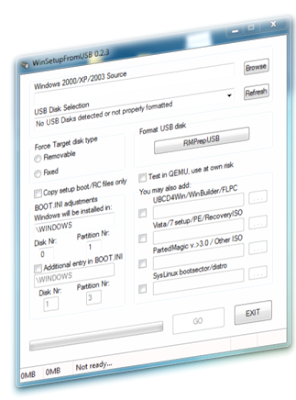
Follow these simple steps to make USB bootable-
1. Install the software downloaded from above link.
2. Format the pen-drive(it must be at least 2GB for XP and 4GB for win7 or vista) from windows.
3. Extract the ISO containing the setup of the OS, use 7zip or winrar for the same.
4. For eg. in case of XP extract files with contain I386 folder,the software needs that, so you just have to extract the image of the OS and provide link of the folder which has the unzip files.
5. Click go in the software we are using, and you are done. Remove safely the pen-drive, it has now the OS you have just booted.
6. Now in the BIOS change the priority of the USB in the boot section to highest.
7. Restart your computer and you'll see before your OS starts it asks to boot from USB, press any key to do so.
8. The XP installation i did was in two parts. The 1st part copies all the files necessary for the installation.
9. After this your computer restarts and then you again have to boot from USB i.e step7 and install part two. Thats it, OS installation takes it time as usual and you are done. Keep this USB for any further use.
9 simple steps and you can install a OS using Pen-drive.
Got any problem feel free to mail me @ amitchhajer@thecolloquium.info or leave a comment here.
Subscribe to:
Comments (Atom)